
Starting your XR28™
After doing your daily pre-start beginning of shift inspection and found everything to be in order, it is time to turn on your XR28™ sharpener.
Procedure to start up your XR28™
|
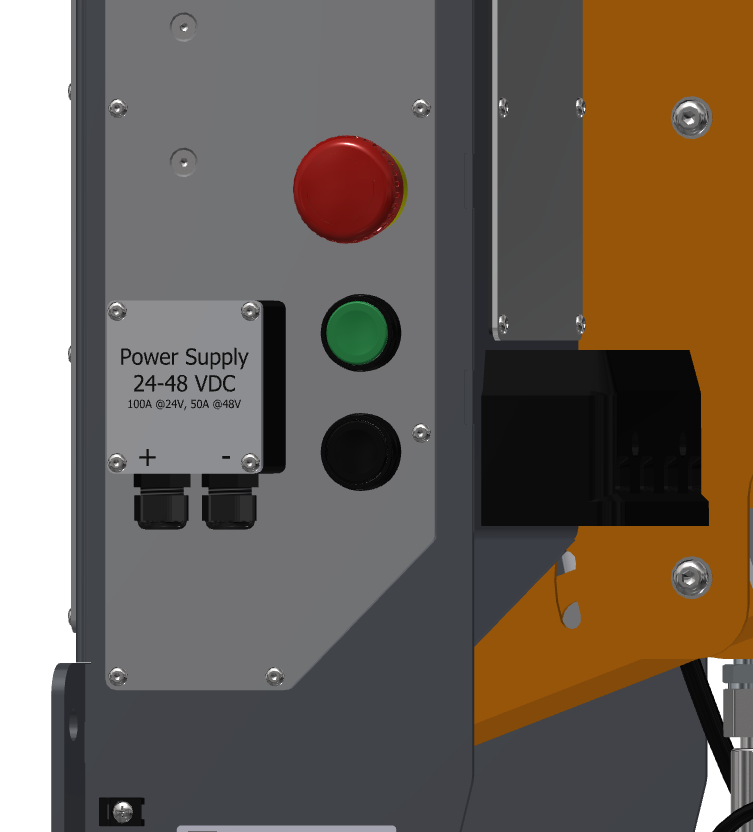
Ensure the power supply to your XR28™ is turned on. Confirm the emergency stop is dissengaged. Turn on the sharpener by pushing the green 'ON' button. |
 |
|
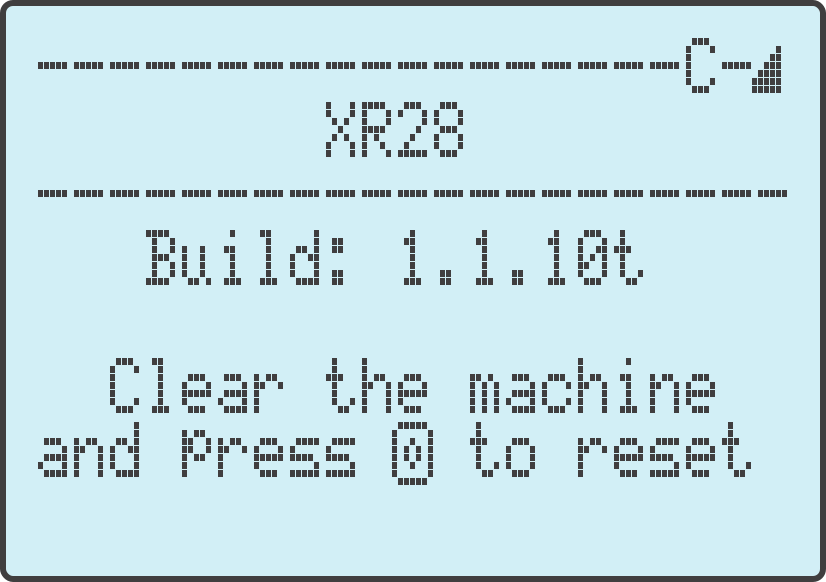
Wait for your machine to load initial software, when the digital display shows the current software version and the work area has been cleared, you can proceed to press the 'Stop/Cancel' button to reset and initiate the machine. |
 |
Connecting your XR28™ to WIFI
The first time you start up your machine in your workshop, you will be required to connect your XR28™ sharpener to your local WIFI network. Just like your other devices, it will save the network name and password and auto-connect to your network in future.
Follow the steps below to connect your XR28™ to WIFI.
|
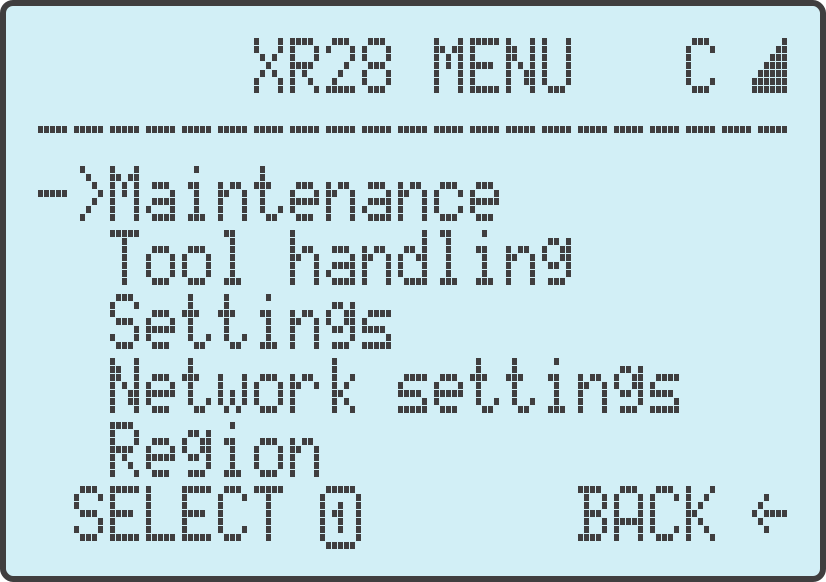
1. Access the machine MENU by pushing and holding the right joystick back (away from you) for a few seconds. 2. Go to 'Network Settings' by scrolling down using either the right joystick or the rotating knob. Select 'Network Settings' by pressing the 'Start' button. |
 |
|
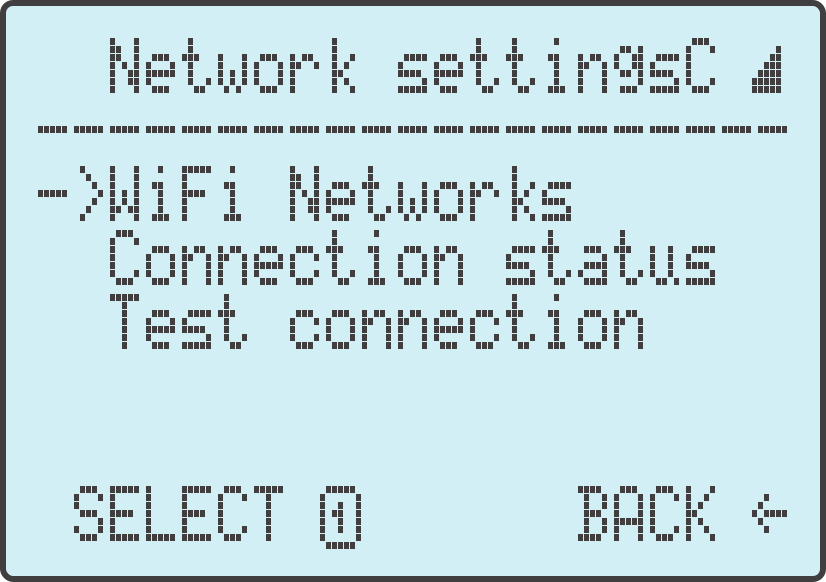
3. Select 'WiFi Networks' |
 |
|
4. Find and select your desired WiFi network. 5. Enter your password using the rotating knob and joystick. |
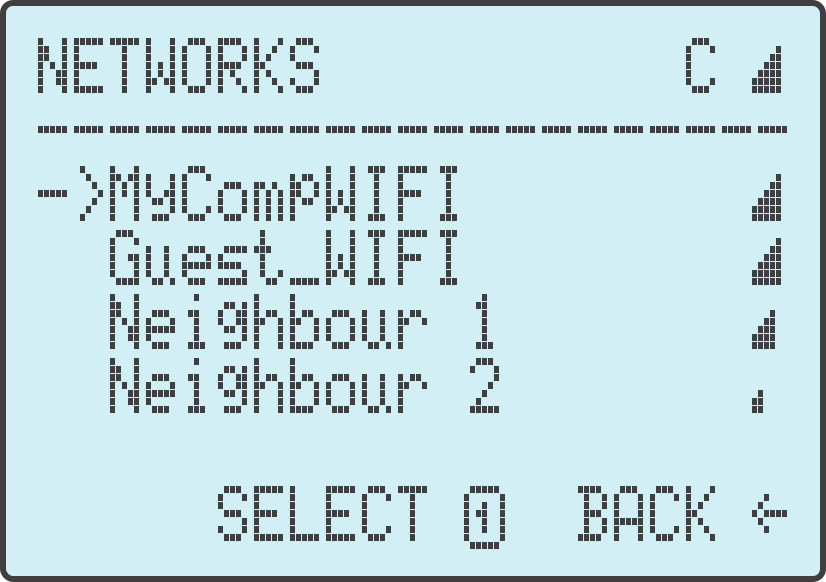 |
Your XR28™ will now auto-connect to your desired network whenever possible. This will allow your machine to receive any and all required software updates, as well as upload the sharpening data which can be viewed on the machines CME Connect profile page.
Setting up your region
It is strongly advised to select the region you are operating your XR28™ in. This will allow for better support.
|
1. You setup your region by accessing the machine MENU and selection the 'Region' option. |
|
|
2. Using the rotating knob you can find and select your region |
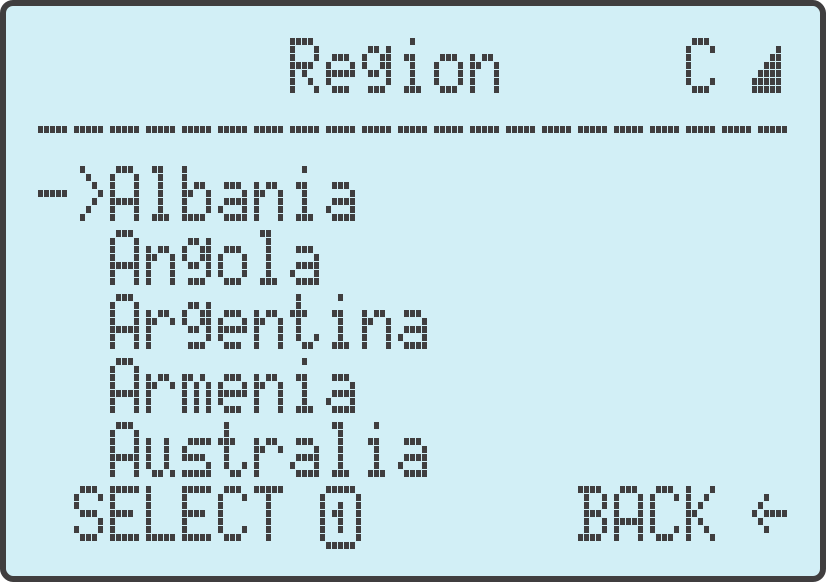 |
Setting your language
The default language setting of your XR28™ is English, however you are able to change the language to a more prefered one for you. This is accomplished by;
|
1. Selecting the 'Language' setting in the MENU. 2. Using the rotating knob select your preferred language. |
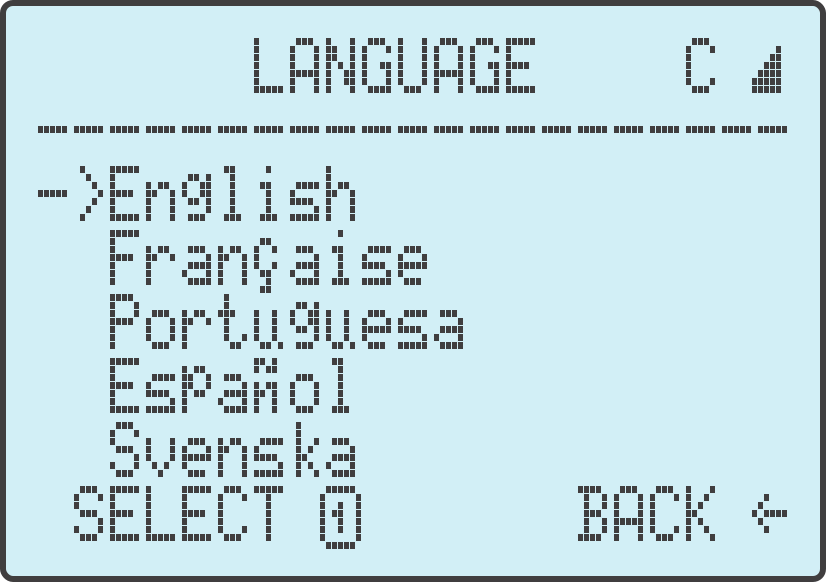 |
There are a limited number of language options available, with more being added in future software updates.
Please use the arrows at the top to proceed to the next section.